
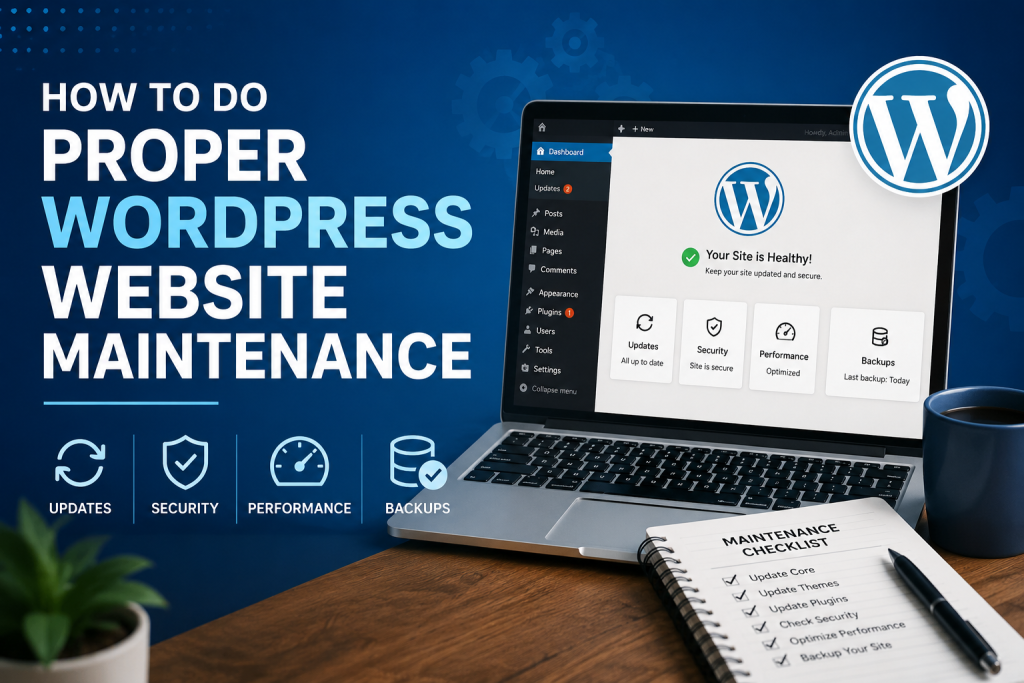
WordPress Maintenance SOP (Frontend/Admin Access Only)
Keeping a WordPress website updated and secure is essential for maintaining performance, preventing security issues, and ensuring a smooth experience for visitors. This Standard Operating Procedure (SOP) is designed for WordPress users who only have access to the WordPress Dashboard and do not have access to cPanel, FTP, or the website’s database.
Step 1: Log in to WordPress
Begin by logging in to the WordPress Dashboard.
Before making any changes:
- Confirm you have Administrator privileges.
- Verify that both the website and the WordPress Dashboard are accessible.
- Check for any obvious issues before starting maintenance.
Step 2: Create a Website Backup
Always create a complete backup before performing updates.
Recommended Plugins
- UpdraftPlus
- WPvivid Backup Plugin
- All-in-One WP Migration
Create a full backup that includes:
- Website files
- Database
Store the backup in a secure location such as Google Drive, Dropbox, OneDrive, or your local computer.
Important: Never update a website without creating a backup first.
Step 3: Update WordPress Core
Navigate to Dashboard → Updates.
If a new version of WordPress is available:
- Update WordPress.
- Wait for the update to finish completely.
- Reload the website.
After updating, verify that:
- The homepage loads correctly.
- The WordPress Dashboard is functioning properly.
- The login page is accessible.
Step 4: Update Plugins
Go to Dashboard → Plugins.
Update plugins one at a time instead of updating all plugins simultaneously.
After each update:
- Visit the homepage.
- Browse several pages.
- Test contact forms.
- Check navigation menus.
- Confirm there are no visible errors.
Step 5: Update Themes
Navigate to Appearance → Themes.
Update the active theme and, if applicable, the parent theme.
After the update:
- Check the homepage.
- Verify menus and navigation.
- Review page layouts.
- Confirm the website displays correctly on mobile devices.
Step 6: Clear Website Cache
After completing updates, clear the website cache to ensure visitors receive the latest version of the website.
Recommended Plugins
- LiteSpeed Cache
- WP Rocket
- W3 Total Cache
- WP Fastest Cache
- Breeze
- FlyingPress
Clear any available:
- Page cache
- CSS cache
- JavaScript cache
- CDN cache (if applicable)
Step 7: Optimize the Database
Although you may not have direct database access, you can safely optimize the database using a WordPress plugin.
Recommended Plugins
- WP-Optimize
- Advanced Database Cleaner
Run the following maintenance tasks:
- Optimize database tables
- Remove post revisions
- Delete spam comments
- Remove expired transients
- Empty the trash
Step 8: Run a Security Scan
Regular security scans help detect malware and identify vulnerabilities before they become major problems.
Recommended Plugins
- Wordfence Security
- Solid Security
- Sucuri Security
Run a full security scan and review:
- Malware detections
- Vulnerability warnings
- Failed login attempts
- Unknown administrator accounts
If any critical issues are detected, notify the website owner before making further changes.
Step 9: Check for Broken Links
Broken links negatively affect both user experience and SEO.
Recommended Plugins
- Broken Link Checker (Cloud)
If plugin installation is not possible, you can also use online broken link checking tools.
Review and fix:
- Broken pages
- Broken images
- Missing downloads
- Incorrect internal links
Step 10: Test Website Functionality
Perform a quick review of the website to ensure everything is functioning correctly.
Check:
- Homepage
- Navigation menu
- Contact forms
- Buttons
- Images
- Videos
- Blog posts
- Search feature
- Footer
If the website uses WooCommerce, also test:
- Product pages
- Shopping cart
- Checkout process
- My Account page
Step 11: Check SEO Settings
Review the website’s SEO configuration.
Recommended Plugins
- Rank Math
- Yoast SEO
- All in One SEO
Verify:
- XML sitemap
- Meta titles
- Meta descriptions
- Focus keywords
- Search engine visibility settings
Step 12: Final Website Inspection
Complete a final review before finishing maintenance.
Visit key pages such as:
- Home
- About
- Services
- Contact
- Blog
- Privacy Policy
Check both desktop and mobile views and confirm there are:
- No layout issues
- No missing images
- No visible errors
- No broken functionality
Step 13: Document the Maintenance
Maintain a record of every maintenance session.
Document the following:
- Date of maintenance
- Website URL
- Backup completed
- WordPress updated
- Plugins updated
- Themes updated
- Database optimized
- Cache cleared
- Security scan completed
- Broken links checked
- SEO settings reviewed
- Issues identified
- Actions taken
Maintaining accurate records helps track website health, simplifies troubleshooting, and demonstrates the value of ongoing website maintenance.
Recommended WordPress Maintenance Plugins
Recommended Maintenance Schedule
| Task | Frequency |
| Website Backup | Before every maintenance session |
| WordPress Core Updates | Weekly |
| Plugin Updates | Weekly |
| Theme Updates | Weekly |
| Security Scan | Weekly |
| Cache Clearing | After every update |
| Database Optimization | Monthly |
| Broken Link Check | Monthly |
| SEO Review | Monthly |
| Full Website Inspection | Monthly |
Following this maintenance routine helps keep WordPress websites secure, stable, and up to date while reducing the risk of downtime and compatibility issues. It is an ideal workflow for virtual assistants, website administrators, and agencies managing WordPress websites through the WordPress Dashboard alone.

Lead developer at PinoySEO with several years of experience in WordPress, Shopify, and custom website development.